最近 Open Interpreterの記事をいろいろ見つけたので自分のMacにもインストールしようとしてみたところ、以下のようなエラーが出ました。
エラーが大量発生
% pip install open-interpreter
ERROR: Ignored the following versions that require a different python version: 0.0.1 Requires-Python >=3.10,<4.0; 0.0.2 Requires-Python >=3.10,<4.0; 0.0.21 Requires-Python >=3.10,<4.0; 0.0.22 Requires-Python >=3.10,<4.0; 0.0.221 ・・・
・・・
Requires-Python >=3.10,<4.0; 0.1.4 Requires-Python >=3.10,<4.0
ERROR: Could not find a version that satisfies the requirement open-interpreter (from versions: none)
ERROR: No matching distribution found for open-interpreter
% python --version
Python 3.8.3
% pyenv install -list
Available versions:
・・・
  3.10.0
  3.10-dev
  3.11-dev
・・・
  stackless-3.7.5
% pyenv install 3.10.0
python-build: use openssl@1.1 from homebrew
・・・
Installed Python-3.10.0 to /・・・/.pyenv/versions/3.10.0
% pyenv local 3.10.0
% Python -V
Python 3.10.0
% pip install open-interpreter
Collecting open-interpreter
  Downloading open_interpreter-0.1.4-py3-none-any.whl (35 kB)
・・・
WARNING: You are using pip version 21.2.3; however, version 23.2.1 is available.
You should consider upgrading via the '/Users/katsuhiro.kurita/.pyenv/versions/3.10.0/bin/python3.10 -m pip install --upgrade pip' command.
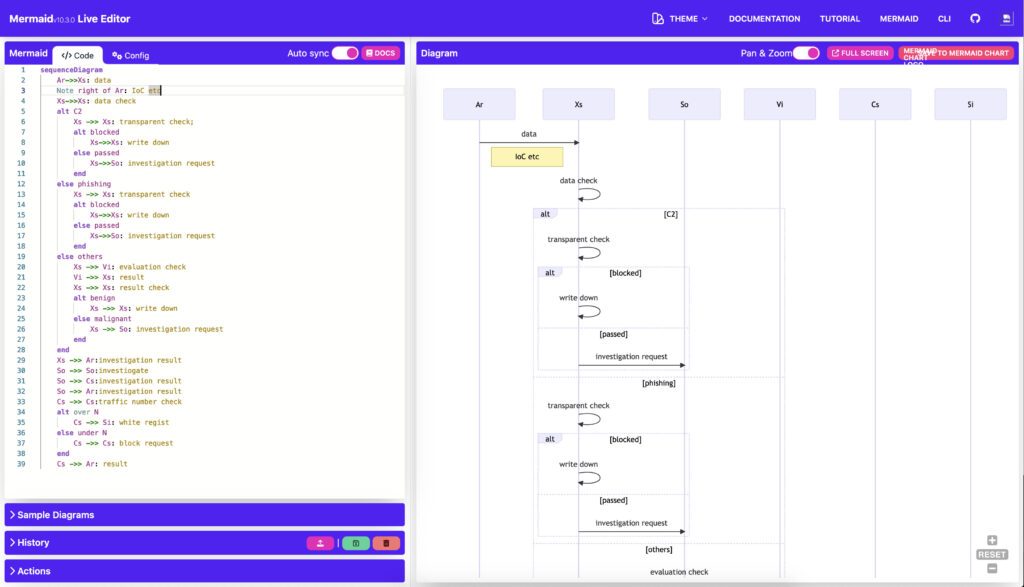
mermaid live editorはオンラインにてフリーで利用でき、アカウントも作成する必要がないので、誰でも自由に Markdown形式の記述からシーケンス図を作成できてしまいます。
mermaid live editor
https://mermaid-js.github.io/mermaid-live-editor/edit
2.Markdown形式でシーケンスを作成
Markdown形式ってなんだか難しそうに聞こえますが、意外と簡単です。
初めて作成した私でも下記の記述程度であれば、見よう見までで30分〜1時間程度でかけてしまいました。
sequenceDiagram ← シーケンズ図であることを宣言
    Ar->>Xs: data ← ArからXsにメッセージ(data)を渡す場合はこう書く
    Note right of Ar: IoC etc ← 黄色い付箋にノートが書ける
    Xs->>Xs: data check
    alt C2 ← 条件分岐を記載
        Xs ->> Xs: transparent check;
        alt blocked
            Xs->>Xs: write down
        else passed
            Xs->>So: investigation request
        end
    else phishing
        Xs ->> Xs: transparent check
        alt blocked
            Xs->>Xs: write down
        else passed
            Xs->>So: investigation request
        end
    else others
        Xs ->> Vi: evaluation check
        Vi ->> Xs: result
        Xs ->> Xs: result check
        alt benign
            Xs ->> Xs: write down
        else malignant
            Xs ->> So: investigation request
        end
    end
    Xs ->> Ar:investigation result
    So ->> So:investiogate
    So ->> Cs:investigation result
    So ->> Ar:investigation result
    Cs ->> Cs:traffic number check
    alt over N
        Cs ->> Si: white regist
    else under N
        Cs ->> Cs: block request
    end
    Cs ->> Ar: result
3.できあがったシーケンス図を確認
mermaid live editorの左ペインで、2.に掲載したMarkdown形式のシーケンスを書いていると、右ペインにリアルタイムでシーケンス図が描かれます。
これはおもった以上に便利ですね。
mermaid live editor
いきなりPower Point でこのシーケンス図を描こうとするとかなり難儀ですが、一旦、mermaid live editorで作成しておいて、後で Power Point で清書するという使い方もありかと思います。
sequenceDiagram
    Ar->>Xs: data
    Note right of Ar: IoC etc
    alt C2
        Xs->>Xs: write down
    else phishing
        Xs ->> Xs: transparent check
        Xs->>Xs: write down
    else others
        Xs ->> Vi: evaluation check
        Vi ->> Xs: result
        Xs ->> Xs: result check
    end
    Xs ->> So:investigation request
    Xs ->> Ar:investigation result
    So ->> So:investiogate
    So ->> Cs:investigation result
    So ->> Ar:investigation result
    Cs ->> Cs:remediation dicision
    alt benign
        Cs ->> Cs: block request
    else malignant
        Cs ->> So: quarantine request
        Cs ->> As: quarantine report
        So ->> So: quarantine execute
        So ->> Ci: quarantine fin report
        As ->> Cs: status report
    end
    Cs ->> Ar: result
from requests.exceptions import Timeout
・・・
# Get the HTML content of the top page
try:
response = requests.get(url, timeout=(6.0, 10.0))
html = response.content.decode("utf-8")
except Timeout:
print(f"\n[Timeout {url}]")
% bandit test.py
[main] INFO profile include tests: None
[main] INFO profile exclude tests: None
[main] INFO cli include tests: None
[main] INFO cli exclude tests: None
[main] INFO running on Python 3.8.3
[node_visitor] WARNING Unable to find qualified name for module: test.py
Run started:2023-08-14 08:04:48.814175
Test results:
No issues identified.
Code scanned:
Total lines of code: 53
Total lines skipped (#nosec): 0
Run metrics:
Total issues (by severity):
Undefined: 0
Low: 0
Medium: 0
High: 0
Total issues (by confidence):
Undefined: 0
Low: 0
Medium: 0
High: 0
Files skipped (0):
%
% bandit test.py
[main] INFO profile include tests: None
[main] INFO profile exclude tests: None
[main] INFO cli include tests: None
[main] INFO cli exclude tests: None
[main] INFO running on Python 3.8.3
[node_visitor] WARNING Unable to find qualified name for module: test.py
Run started:2023-08-14 01:37:45.050500
Test results:
>> Issue: [B113:request_without_timeout] Requests call without timeout
Severity: Medium Confidence: Low
CWE: CWE-400 (https://cwe.mitre.org/data/definitions/400.html)
More Info: https://bandit.readthedocs.io/en/1.7.5/plugins/b113_request_without_timeout.html
Location: test.py:31:11
30 # Get the HTML content of the top page
31 response = requests.get(url)
32 html = response.content.decode("utf-8")
--------------------------------------------------
>> Issue: [B113:request_without_timeout] Requests call without timeout
Severity: Medium Confidence: Low
CWE: CWE-400 (https://cwe.mitre.org/data/definitions/400.html)
More Info: https://bandit.readthedocs.io/en/1.7.5/plugins/b113_request_without_timeout.html
Location: test.py:62:15
61
62 response = requests.get(link)
63 html = response.content.decode("utf-8")
--------------------------------------------------
Code scanned:
Total lines of code: 46
Total lines skipped (#nosec): 0
Run metrics:
Total issues (by severity):
Undefined: 0
Low: 0
Medium: 2
High: 0
Total issues (by confidence):
Undefined: 0
Low: 2
Medium: 0
High: 0
Files skipped (0):
%
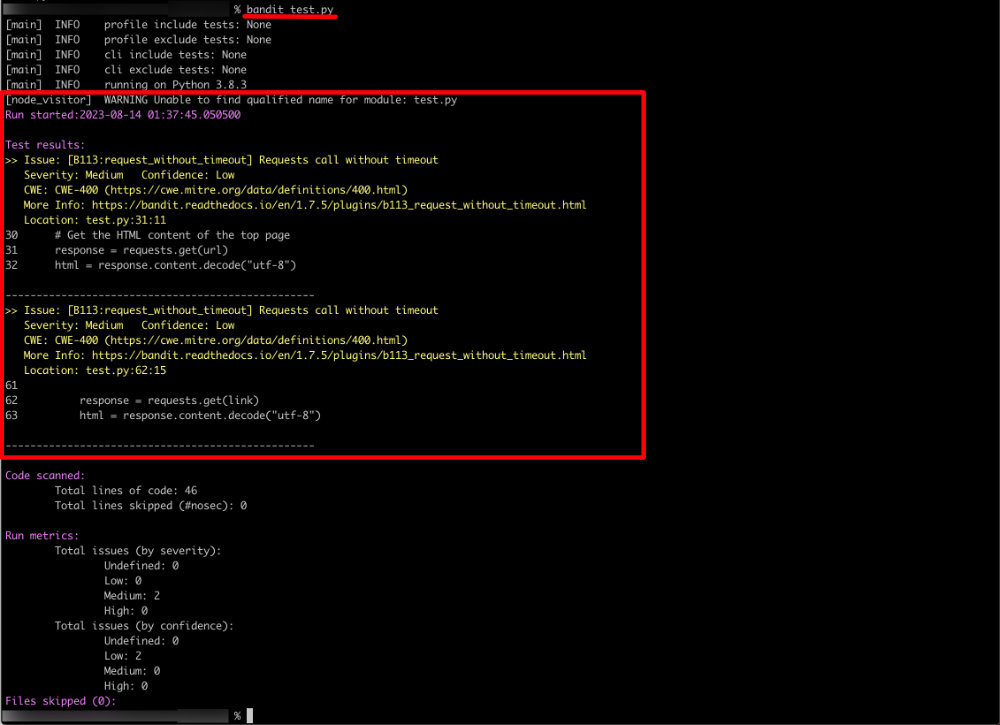
3.bandit 実行結果の考察
どうやら「Test results:」という部分にプログラムの問題点が列挙されているようです。
2つ「Issue」が記載されていますが、どちらも Requests call without timeout となっています。
タイトルの通り、何かのhtml タグではなく、ブラウザに表示される文字列のスタート部分とエンド部分を指定して html データを抜き出してみました。
1.Pythonプログラム
# -*- coding: utf-8 -*-
from datetime import datetime, timedelta
import requests
import re
from bs4 import BeautifulSoup
# Set the day before yesterday's date
beforeyesterday = datetime.now() - timedelta(days=17)
beforeyesterday_str = beforeyesterday.strftime("%Y/%m/%d")
# URL of the top page
url = "https://www.xxx.jp/"・・・スクレイピングサイト"/"付き
domain ="https://www.xxx.jp"・・・スクレイピングサイト"/"無し
# start_string と end_string の間のストリングを取得する
start_string = "○○の一例:"
end_string = "○○○した場合は、○○○までご連絡ください。"
# Get the HTML content of the top page
response = requests.get(url)
html = response.content.decode("utf-8")
# Use BeautifulSoup to parse the HTML content
soup = BeautifulSoup(html, "html.parser")
# Find the parent element with the "○○○情報" title
security_info = soup.find('h1', string="○○○情報").parent
#print(security_info)
# Find all <h3> tags within the parent element
h3_tags = security_info.find_all('h3')
filtered_links = [tag.a['href'] for tag in h3_tags if tag.a is not None and beforeyesterday_str in tag.a.text]
for link in filtered_links:
if link.startswith('http'):
print(link)
else:
link = domain + link
print(link)
# トップページから取得した指定日の記事を読み込む
response = requests.get(link)
html = response.content.decode("utf-8")
# BeautifulSoupを使ってHTMLを解析
# soup = BeautifulSoup(html, 'html.parser')
# article = soup.find('article', class_="nc-content-list")
# print(article)
# texts_p = [c.get_text() for c in article.find_all('p')]
# print(texts_p)
# Split the target text on the start and end strings and take the middle part
target_text = html.split(start_string)[1].split(end_string)[0].split("</p>")[0]
print(target_text)
# 改行コードを空文字列に置換して一つのテキストにする
target_text = target_text.replace('\n', '')
# <br />タグを区切り文字として順番に配列に入れる
result_array = [text for text in target_text.split('<br />') if text]
# 結果の出力
print(result_array)
33行目:filtered_links = [tag.a[‘href’] for tag in h3_tags if tag.a is not None and beforeyesterday_str in tag.a.text] ここやたら長いですが、結果的には h3_tagsからbeforeyesterday_strが含まれるhrefのリンクデータのみ抜き出し、filtered_linksに入れてくれているようです。
# -*- coding: utf-8 -*-
from datetime import datetime, timedelta
import requests
import re
from bs4 import BeautifulSoup

# Set the day before yesterday's date
beforeyesterday = datetime.now() - timedelta(days=15)
beforeyesterday_str = beforeyesterday.strftime("%Y%m%d")
mail_line_pattern = "From: \"[a-zA-Z0-9_.+-]+.+[a-zA-Z0-9-]+\.[a-zA-Z0-9-.]+\""
mail_pattern = "^[0-9a-zA-Z_.+-]+@[0-9a-zA-Z-]+\.[0-9a-zA-Z-.]+$"
env_mail_pattern = "<+[0-9a-zA-Z_.+-]+@[0-9a-zA-Z-]+\.[0-9a-zA-Z-.]+>"
subject_line_pattern = "Subject:"

# Initialize an empty list to store the articles
articles_beforeyesterday = []
text_beforeyesterday = []
link_beforeyesterday = []
mail_list = []
email_list = []
env_email_list = []
subject_list = []
title_list = []

# URL of the top page
url = "https://www.xxx.jp/news/"
domain ="http://www.xxx.jp"

# Get the HTML content of the top page
response = requests.get(url)
html = response.content.decode("utf-8")

# Use BeautifulSoup to parse the HTML content
soup = BeautifulSoup(html, "html.parser")

# Find all <a href> elements in the HTML
for a in soup.find_all("a",href=re.compile(beforeyesterday_str)):
    if a in articles_beforeyesterday:
        print("duplicated")
    else:
        text=a.getText()
        link=a.get("href")
        articles_beforeyesterday.append(a)
        text_beforeyesterday.append(text)
        link_beforeyesterday.append(link)

print(link_beforeyesterday)

for link in link_beforeyesterday:
    # Get the HTML content of the top page

    if link.startswith('http'):
        print(link)
    else:
        link = domain + link
        print(link)

    response = requests.get(link)
    html = response.content.decode("utf-8")

    # Use BeautifulSoup to parse the HTML content
    soup = BeautifulSoup(html, "html.parser")

    h5_tags = soup.find_all('h5', class_='alert_h5')

    for tag in h5_tags:
        if tag.get_text() == '○○○の件名':
            print(tag.find_next('p').get_text())